To compress many images at once, open the free compressor, select all the photos and drop them on the box together. Pick a format, a quality and, if you like, a longest side or a target size. The same settings apply to every photo, the results show the size before and after for each one, and Download all as ZIP saves the whole batch in one file. Everything runs in your browser, so the photos are never uploaded.
Below are the step-by-step details, settings that work well for batches, and the built-in tools on Mac and Windows if you would rather not use a browser.
Step by step in the browser
- Add the photos. Open the folder, select all the images (Cmd+A on a Mac, Ctrl+A on Windows) and drag them onto the box. Or tap Choose photos and select several at once, which also works in Safari on iPhone. JPEG, PNG, WebP and HEIC can be mixed in one batch.
- Pick the settings. They apply to the whole batch. Change one and every photo is compressed again, so you can try a setting and watch the total change.
- Check a few results. Tap any row and drag the comparison slider. Look at the photos with the most detail, such as foliage, fabric or faces, since those show compression first.
- Download. Download all as ZIP saves one file called
lean-compressed.zip. You can also download any photo on its own.
Photos that would come out larger than they went in are left as they are and marked as already small. That happens with images that were compressed hard before, and it means you never get a bigger file by accident.
Settings that work for a mixed batch
A batch often mixes phone photos, screenshots and downloaded images of very different sizes. A target size handles that better than a fixed quality, because each photo gets the highest quality that fits.
| Goal | Format | Longest side | Target size |
|---|---|---|---|
| Upload to a website or CMS | WebP | 1920 | 200 KB |
| Attach to an email | JPEG | 1920 | 500 KB |
| Strict form limit | JPEG | 1280 | 100 KB |
| Keep as much detail as possible | JPEG | Original | No target, quality 85 |
Longest side matters most. A 4,000 pixel photo shown 1,000 pixels wide wastes most of its bytes, and scaling down is what turns megabytes into kilobytes. Our guides on images for a website and what JPEG quality to use go deeper into both settings.
What happens to file names and metadata
Each copy keeps the original name with a new extension, so IMG_2041.HEIC becomes IMG_2041.jpg. Photos are turned upright first, so they look the way they were taken.
The copies carry no EXIF data: no GPS position, camera model or capture date. That is useful when you share photos publicly. It is a problem if you sort photos by date taken, because the copies will sort by file date instead. Keep the originals in that case.
Without a browser: Mac and Windows
Both systems can batch resize images with tools they already have or offer for free.
Mac, with Preview:
- Select the images in Finder and open them together in Preview.
- In the sidebar, select all of them (Cmd+A).
- Choose Tools › Adjust Size, set the width, and confirm. All selected images are resized.
- To change the format or quality, choose File › Export Selected Images, then pick a format in the options.
Windows, with PowerToys:
Microsoft’s free PowerToys includes Image Resizer. After installing it, select images in File Explorer, right-click and choose Resize with Image Resizer. You pick a preset size, and it can also set JPEG quality in its settings. It writes copies next to the originals by default.
Both keep you in charge of every file. Neither shows a before and after comparison or fits a target size in KB, which is where the browser tool is faster for upload limits.
Batches on iPhone
On iPhone the browser tool works, but it creates copies in Files, outside the Photos library. That is right for sending a set of photos. It does not free any space, because the originals are still there.
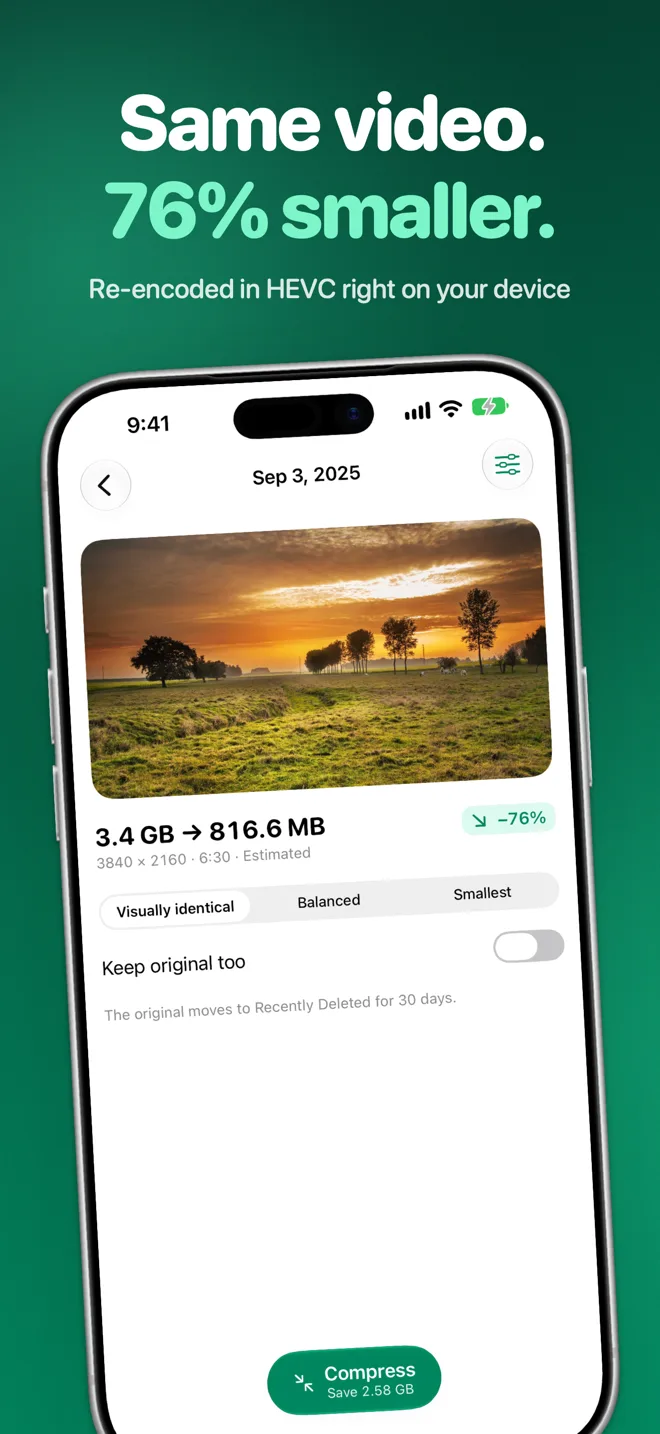
To shrink photos and videos inside the library, Lean is built for batches. It sorts the library by size so the largest items come first, and you can queue hundreds at once. Compression keeps running in the background and a notification tells you when it is done. Each item keeps its date, location, favourite status and albums, Live Photos stay live, and the originals move to Recently Deleted for 30 days. Lean is free to download with three compressions every week; Lean Pro removes the limit. Read how to compress photos on iPhone for the full picture.